
🌊 Millarum Activity Stream
Stacked bar chart of team member activity broken down by activity type — comments, transitions, and field updates.
Overview
Use this widget to:
- Identify the most (and least) active contributors on a project
- See which team members are doing mostly commenting vs. status work
- Spot patterns in team collaboration over different time windows
- Quickly understand "who has been doing what" within the filtered issue set
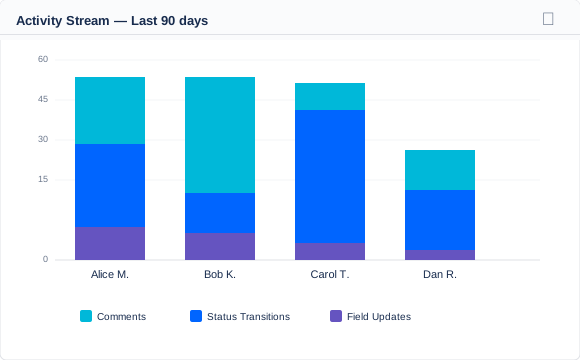
Activity Stream showing 4 team members, with each bar stacked by activity type over the last 90 days
Adding the Widget
- Click Add gadget on your dashboard.
- Search for "Millarum Activity Stream".
- Click Add.
Configuration
Click the ⚙ Configure icon to open the configuration panel.
Max Issues Inspected
The Activity Stream reads the full activity history of each issue to detect what actions were taken. To keep load times reasonable, you can cap how many issues are inspected.
| Setting | Value |
|---|---|
| Minimum | 1 issue |
| Default | 200 issues |
| Maximum | 250 issues |
If your Slicer returns more than 200 issues and you need complete activity data, increase this value. If the widget is loading slowly, reduce it to 50–100.
Grouping Window
Limits the activity analysis to a recent time window so only relevant activity is counted:
| Option | Description |
|---|---|
| Last 7 days | Only count activity in the past 7 days |
| Last 30 days | Activity in the past month |
| Last 90 days (default) | Activity in the past 3 months |
| Last 180 days | Activity in the past 6 months |
| Last 365 days | Activity in the past year |
| All time | No time filter — all historical activity |
Reading the Chart
Each bar in the chart represents one team member (identified by display name). The bar is divided into stacked segments:
| Segment Color | Activity Type | What it counts |
|---|---|---|
| Blue | Status Transitions | Moving issues through workflow statuses (e.g., To Do → In Progress) |
| Teal | Comments | Adding comments to issues |
| Purple | Field Updates | Changing field values (assignee, priority, labels, etc.) |
The Y-axis shows total activity event count. Hover over any segment for exact numbers.
Interaction with the Slicer
The chart only analyzes issues that match the current Slicer filters.
Example use cases:
- Slicer set to Project: "Mobile App" → see activity breakdown for that project's team
- Slicer set to Type: "Bug", Status: "In Progress" → see who is most active on open bugs
- Slicer set to a specific Assignee → see their personal activity breakdown
Empty States
| Message | Cause |
|---|---|
| Please add the Millarum Slicer to this dashboard | No Slicer on the same dashboard |
| No activity data for the current filters | No activity found within the selected time window |
| Loading… | Data fetch in progress |
Performance Notes
Activity Stream is the most data-intensive widget because it reads the full history of each issue — not just its current state. If your dashboard loads slowly:
- Reduce Max Issues Inspected to 50–100.
- Narrow the Grouping Window to 30 or 90 days.
- Apply tighter Slicer filters to reduce the matched issue set.
Tips
- Use Last 7 days during sprint reviews to see who was most active in the current sprint.
- A team member showing only field updates (no comments, no transitions) may indicate administrative rather than delivery work — worth a conversation.
- An empty activity stream despite active issues may indicate work is happening outside Jira (linked external tools, Slack, etc.).
- Compare the widget side-by-side with the List widget to cross-reference activity against the actual issues in scope.