
📋 Millarum List
Paginated issue table with configurable columns, resizable headers, and inline field editing.
Overview
Use this widget to:
- Browse all issues matching your current Slicer filters
- Quickly update Status, Assignee, or Priority without leaving the dashboard
- Configure which columns to show (including custom Jira fields)
- Navigate paginated results with 10, 20, 25, 50, or 100 items per page
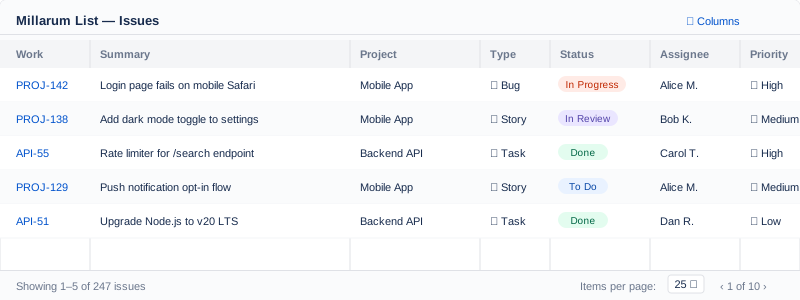
List widget showing 5 issues with status badges and pagination controls
Adding the Widget
- Click Add gadget on your dashboard.
- Search for "Millarum List".
- Click Add.
No configuration step is required — the widget loads immediately with a sensible default column set.
Default Columns
When first added, the List shows five columns:
| Column Label | Jira Field |
|---|---|
| Work | Issue key (e.g., PROJ-42) |
| Summary | Issue title / summary text |
| Project | Project name |
| Type | Issue type (Bug, Story, Task…) |
| Status | Current workflow status |
Column Configuration
Opening the Column Picker
Click the ⚙ Columns button in the widget header to open the column picker modal.
Available Standard Columns
Work, Summary, Project, Type, Status, Assignee, Priority, Due Date, Start Date, Created.
Custom Fields
Any custom field available in your Jira instance (e.g., Story Points, Sprint, Epic Link) appears in the column picker below the standard fields. Check or uncheck columns, then click Apply. The table re-renders immediately with the new column set.
Resizing Columns
Drag the right edge of any column header to resize it. Column widths are saved automatically and restored on the next page load — no extra configuration needed.
Pagination
Use the controls at the bottom of the widget:
- Items per page: Choose 10, 20, 25, 50, or 100
- Page navigation: Use ‹ Prev / Next › arrows or click a page number
- Issue count: Total matching issue count is shown alongside pagination
All matching issues are loaded once when filters change. Page navigation is instant with no extra loading — even for 1,000+ issue sets.
Inline Editing
Click any editable cell in the table to edit that issue's field without leaving the dashboard.
Editable Fields
| Field | Edit Behavior |
|---|---|
| Status | Dropdown showing allowed next statuses in the workflow |
| Assignee | User picker with search |
| Priority | Priority level dropdown |
| Other fields | Text or select input depending on field type |
How It Works
- Click a cell in an editable column.
- A dropdown or text input appears in place.
- Select or enter the new value and confirm.
- The row updates optimistically while the save completes in the background.
- A brief success or error banner confirms the outcome.
Inline editing respects your Jira project permissions. If you don't have edit rights for an issue, that cell will not be editable.
Empty States
| Message | Cause |
|---|---|
| Please add the Millarum Slicer to this dashboard | No Slicer gadget on the same dashboard |
| No issues match the current filters | Filters active but zero results returned |
| Loading… | Data fetch in progress |
Tips
- Drag the Summary column wider if issue titles are getting truncated.
- Add the Priority column to quickly triage issues by severity at a glance.
- Use the Created date column to spot stale issues that are long overdue.
- Combine with a Slicer preset "Bugs only" and the List widget becomes a live bug triage board.
- Use 100 per page when you need to copy/review a complete issue set; use 10 for focused daily standups.