
📊 Millarum Charts
Configurable chart widget supporting 7 chart types, 10 color palettes, and clickable drilldowns.
Overview
Use this widget to answer questions like:
- How are my open issues distributed by Status?
- What is the breakdown of issues by Issue Type?
- Which Assignee has the most open work?
- How does Priority spread across the current sprint?
You can add multiple Charts widgets to the same dashboard, each configured with a different chart type or grouping field, to build a rich visual overview of your work.
Chart Examples
Pie Chart — Issues by Type
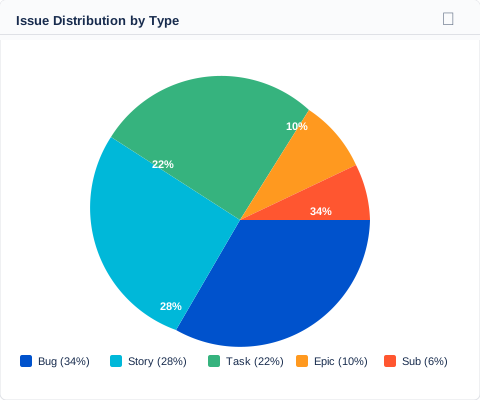
Pie chart grouping issues by Issue Type with percentage labels
Horizontal Bar Chart — Issues by Status
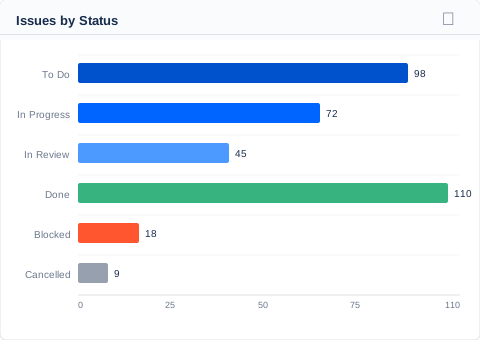
Horizontal bar chart — great for many categories or long field value names
Vertical Stacked Bar — Type + Status
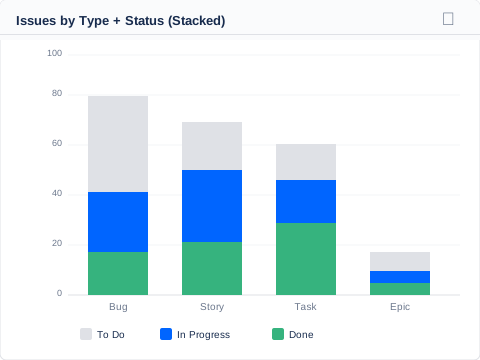
Stacked bar chart comparing Issue Type (primary) against Status (sub-grouping)
Adding the Widget
- Click Add gadget on your dashboard.
- Search for "Millarum Charts".
- Click Add. The widget will prompt you to configure it.
Configuration
Click the ⚙ Configure icon on the gadget to open the configuration panel.
Chart Type
| Type | Description |
|---|---|
| Pie | Classic pie chart — segments proportional to issue count |
| Donut | Like Pie but with a hollow center; total count shown in the middle |
| Gauge | Semi-circular gauge — best for single-dimension completion metrics |
| Horizontal Bars | Horizontal bar chart — ideal for comparing many categories with long names |
| Horizontal Stacked Bars | Bars stacked by a second field — compare two dimensions simultaneously |
| Vertical Bars | Vertical bar chart — good for ranked or time-based comparisons |
| Vertical Stacked Bars | Vertical bars stacked by second field |
Grouping Field (Primary Dimension)
Select the Jira field to group issues by. Available options include:
- Issue Type, Status, Project, Priority
- Assignee, Reporter, Resolution
- Labels, Components, Fix Version, Affected Versions
- Created Date, Updated Date, Due Date
- Any custom field returned by your Jira instance
Sub-Grouping Field (Stacked charts only)
For Horizontal Stacked Bars and Vertical Stacked Bars, choose a second field to stack segments by. For example:
- Primary: Issue Type → Sub-grouping: Status
Shows the status breakdown inside each issue type bar. - Primary: Project → Sub-grouping: Priority
Shows the priority distribution within each project.
Color Palette
| Palette | Character |
|---|---|
| Atlassian | Blue, teal, green, yellow, orange — Atlassian brand colors |
| Ocean | Deep blues and teals |
| Forest | Greens and earth tones |
| Sunset | Oranges, pinks, purples |
| Earth | Browns, tans, olive greens |
| Neon | Bright, vivid accent colors |
| Pastel | Soft, muted tones |
| Warm | Reds, oranges, yellows |
| Cool | Blues, purples, greens |
| Mono | Black-to-grey grayscale |
Legend Position
Choose where the chart legend appears: Bottom, Top, Left, or Right.
Value Display
For Pie, Donut, Gauge, and Stacked charts, choose whether labels show:
- Numbers — raw issue counts (e.g.,
14) - Percentages — relative proportion (e.g.,
23%)
Drilldowns
Click any chart segment, bar, or slice to open a Jira issue search pre-filtered to that exact combination of field values and the current Slicer filters. This makes it easy to go from "the chart shows 18 Blocked bugs" directly to the list of those specific issues.
Empty States
| Message | Cause |
|---|---|
| Please add the Millarum Slicer to this dashboard | No Slicer gadget found on the same dashboard |
| No data available for the current filters | Filters are set but no matching issues exist |
| Loading… | Data is being fetched from Jira |
Tips
- Pie/Donut work best with 2–8 distinct values. Many categories create cluttered, hard-to-read slices.
- Horizontal Bars are ideal when category labels are long (e.g., assignee names, long status names).
- Stacked Bars reveal patterns-within-patterns — e.g., which issue types have the most "In Progress" items.
- Use Percentages in the Gauge chart type for a clean completion-rate view.
- Add two Charts widgets side by side — one for Issue Type, one for Status — for a richer at-a-glance overview.