
🔀 Millarum Sankey Diagram
Flow diagram showing how issues distribute across field values, or how they have historically moved through status transitions.
Overview
A Sankey diagram uses the width of each flow band to represent issue volume. The thicker the band, the more issues flow through that path.
Use this widget to:
- Map how issues flow from Project → Issue Type → Status
- Understand which status transitions happen most frequently in your workflow
- Spot bottlenecks where many issues enter a state but few leave it
- Visualize work distribution across a multi-level field chain (up to 6 levels)
Two Modes
Standard Mode — Current Field Values
Groups issues by their current field values and draws the configured field chain as flows. Each node level represents one Jira field.
Example: With fields Project → Issue Type → Status, you see:
- How many issues in "Mobile App" are Bugs vs. Stories
- How Bugs in "Mobile App" are split across To Do, In Progress, Done
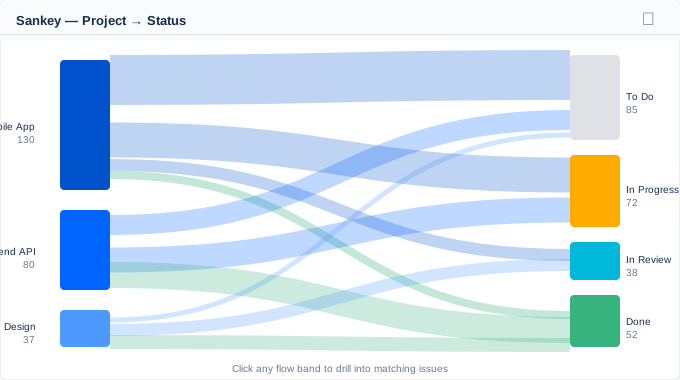
Standard Mode — Project → Status flow with band width proportional to issue count
History Mode — Status Transition Replay
Looks at the full history of each issue to extract actual status transitions. Instead of showing current values, it shows how issues have moved through statuses over their lifetime — including regressions.
Example flows you might see:
- To Do → In Progress (80 issues)
- In Progress → In Review (72 issues)
- In Review → Done (65 issues)
- In Progress → To Do (8 issues — regressions!)
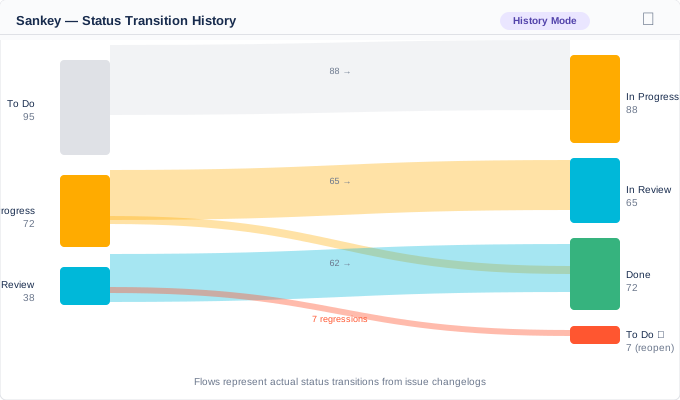
History Mode — actual status transitions from issue history; red band highlights regressions
History Mode is extremely valuable for sprint retrospectives — it shows you your team's actual workflow vs. the intended process, including how often work is reopened or bounced back.
Adding the Widget
- Click Add gadget on your dashboard.
- Search for "Millarum Sankey Diagram".
- Click Add.
The widget starts with a default Project → Status two-level flow.
Configuration
Click ⚙ Configure to open the configuration panel.
Node Fields (Standard Mode only)
Select the chain of Jira fields to use as levels. You can select 1 to 6 fields.
Available standard fields:
| Field | Description |
|---|---|
| Project | Jira project |
| Issue Type | Bug, Story, Task, Epic, etc. |
| Status | Current workflow status |
| Priority | Highest, High, Medium, Low, Lowest |
| Assignee | Assigned user |
| Reporter | Issue reporter |
You can also pick any custom Jira field available in your instance.
Use the + Add level and ✕ Remove buttons to grow or shrink the field chain.
Max Nodes per Level
Limits how many nodes are shown per field level. Issues not in the top-N nodes are grouped into an "Other" bucket.
| Setting | Range | Default |
|---|---|---|
| Max nodes per level | 3 – 30 | 10 |
Reduce this to keep the diagram readable when a field has many distinct values (e.g., Assignee on a large team).
Reading the Diagram
| Element | Meaning |
|---|---|
| Node (rectangle) | A group of issues sharing a field value at that level |
| Flow band | Issues moving from the left node to the right node |
| Band thickness | Proportional to the number of issues in that flow |
| Node label | Field value name + issue count |
Hover over any band or node to see exact issue counts in a tooltip.
Drilldowns
Click any flow band to open a Jira issue search pre-filtered to issues that match both the source and destination node values (plus any current Slicer filters).
Empty States
| Message | Cause |
|---|---|
| Please add the Millarum Slicer to this dashboard | No Slicer on the same dashboard |
| No data for current filters | No issues match or no flow data available |
| Loading… | Data is being fetched |
Tips
- Start simple: Begin with Project → Status (2 levels) to get familiar with the visualization, then add more levels.
- Use History Mode for retrospectives: It reveals actual issue flow patterns vs. the theoretical workflow.
- Limit max nodes to 5–8 for cleaner diagrams — too many thin flows become hard to distinguish.
- Combine with the Slicer to zoom into a specific project or issue type before analyzing flow.
- A thick "To Do → In Progress → To Do" loop in History Mode signals re-opening or regression work — a good item to raise in your retrospective.
- Use 3 levels (Project → Issue Type → Status) for a comprehensive overview of where work sits across your portfolio.